
// Guide
How to use 21Ai
21Ai opens right where you type. Say it your way in any language, pick the language you want to send, and the polished message goes straight into the box. Here is everything it can do, step by step.
Get started
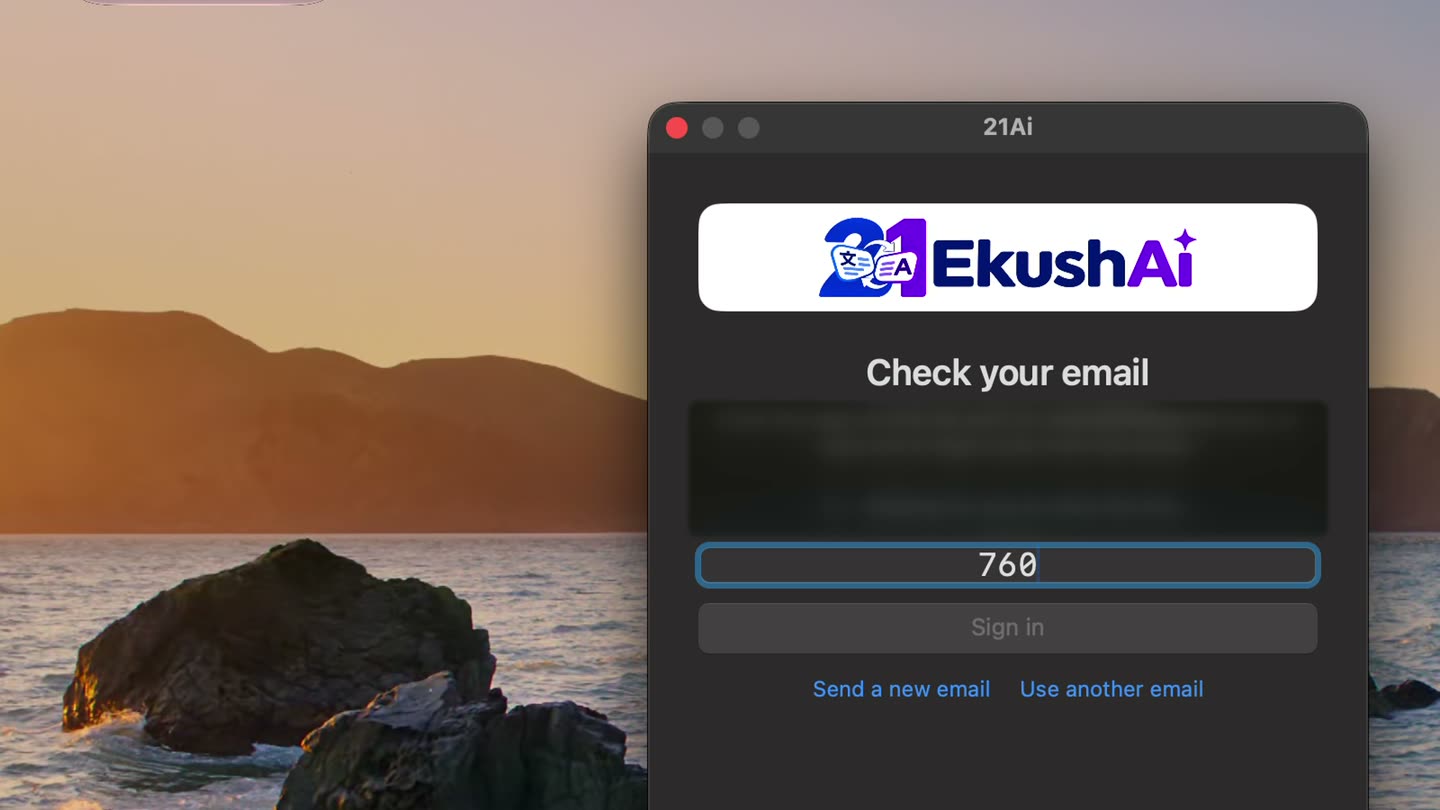
- Download 21Ai for Mac, Windows or Android and install it. The Download page has the steps for each one.
- Type your email and press Continue. We email you a 6-digit code and a sign-in link.
- Type the code, or click the link in the email. You're in. There is no password.
- Mac only: when asked, turn on 21Ai in System Settings › Privacy & Security › Accessibility. It needs this to open on your shortcut and put the text back in the box.
New email? The same steps make your account, and your free Pro trial starts right away.
Open 21Ai in any text box
Click in the place you want to write, like a WhatsApp chat, an email or a Slack message. Then:
- Mac: tap ⌘ (Command) twice, quickly.
- Windows: tap Ctrl twice, quickly.
- Android: tap the small 21Ai button on top of your keyboard (see Android).
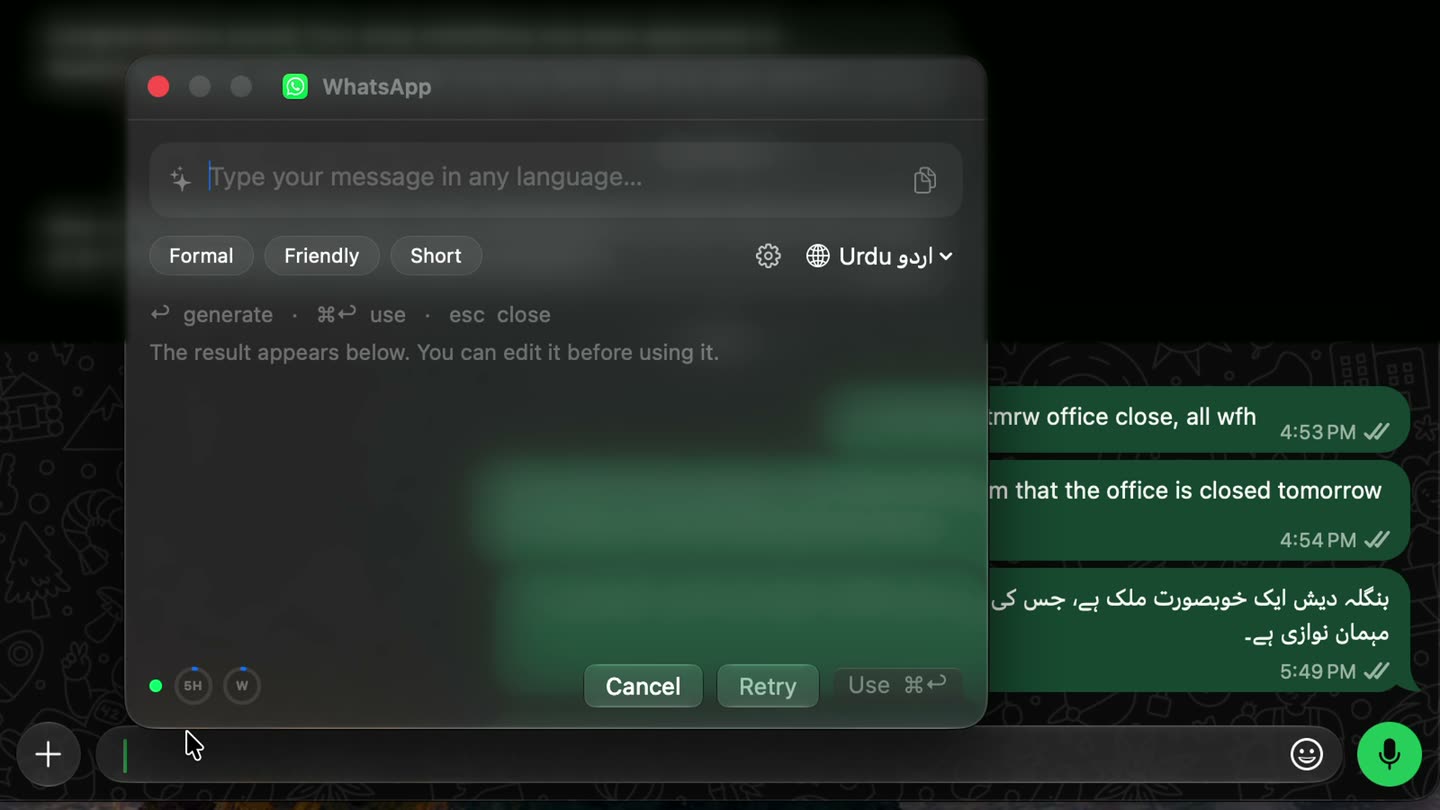
The 21Ai panel opens next to the box. You can also open it from the 21Ai icon in the Mac menu bar or the Windows system tray. Press Esc to close it.
Write the way you speak
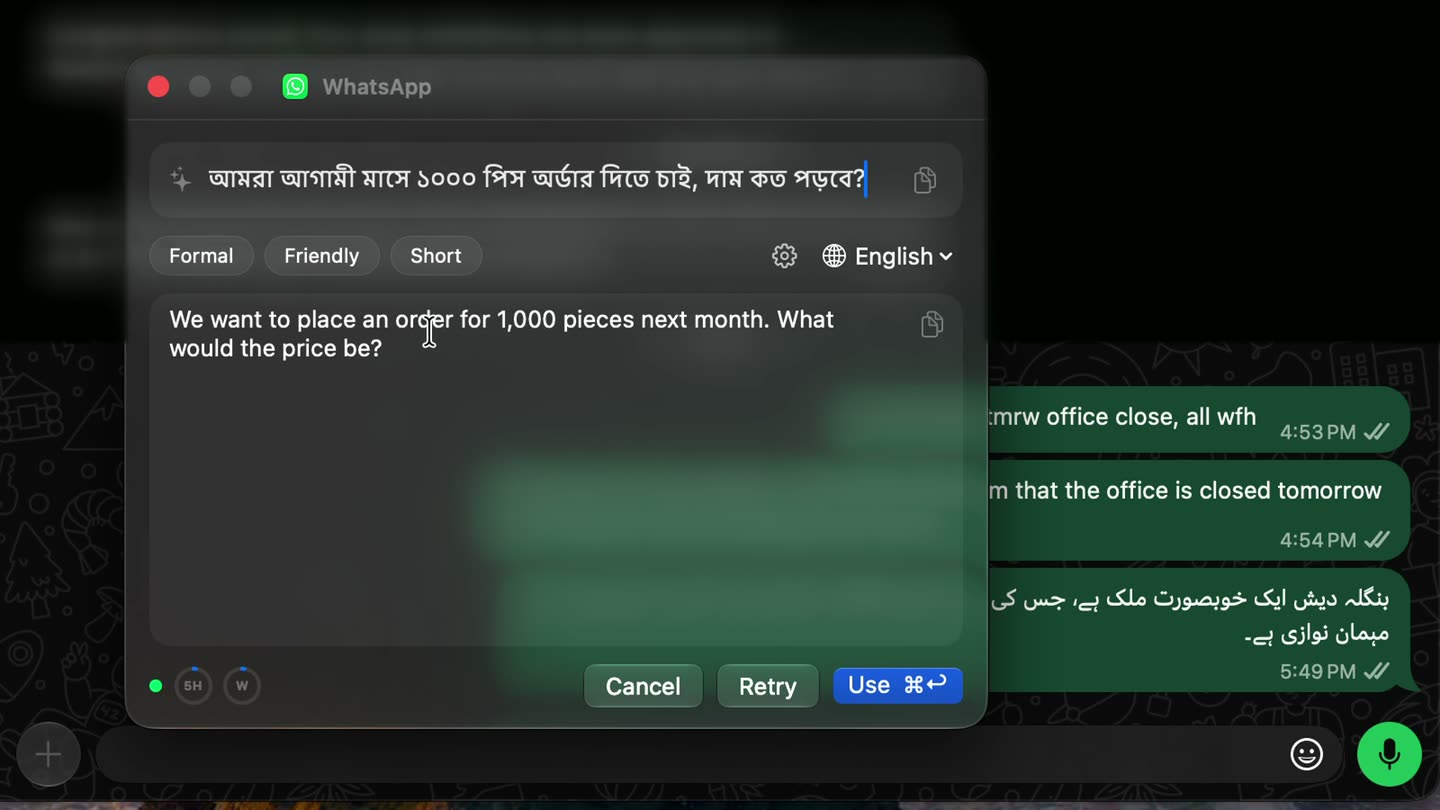
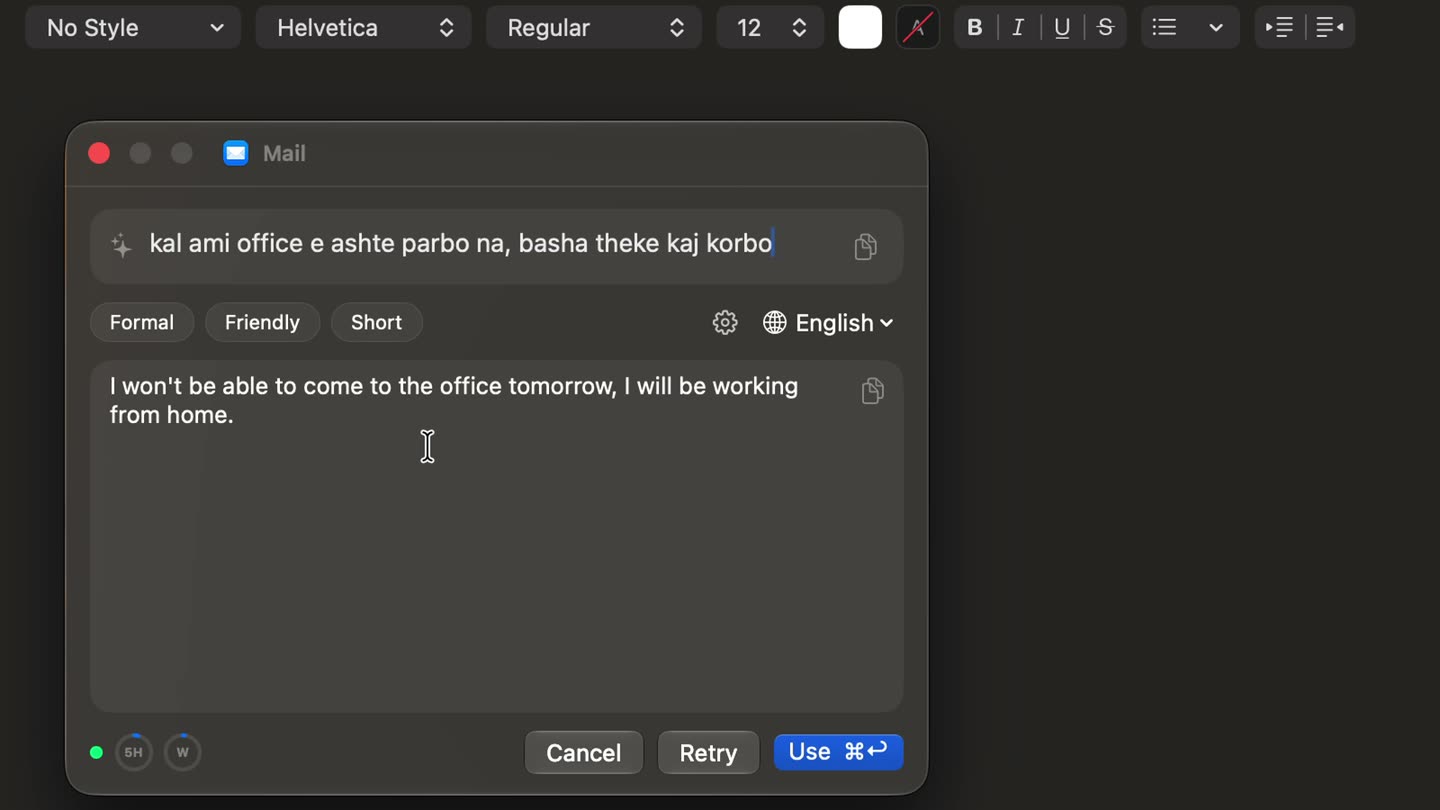
Type what you want to say in any language: Banglish, বাংলা, English, Hindi, Urdu, or a mix. Don't worry about spelling or grammar. 21Ai understands what you mean.
Press ↩ (Enter) to write it. The polished message appears below in a second or two. You can click into it and edit it before you use it.
You type kal ami office e ashte parbo na, basha theke kaj korbo
You get I won't be able to come to the office tomorrow. I'll be working from home.
Pick the language and tone
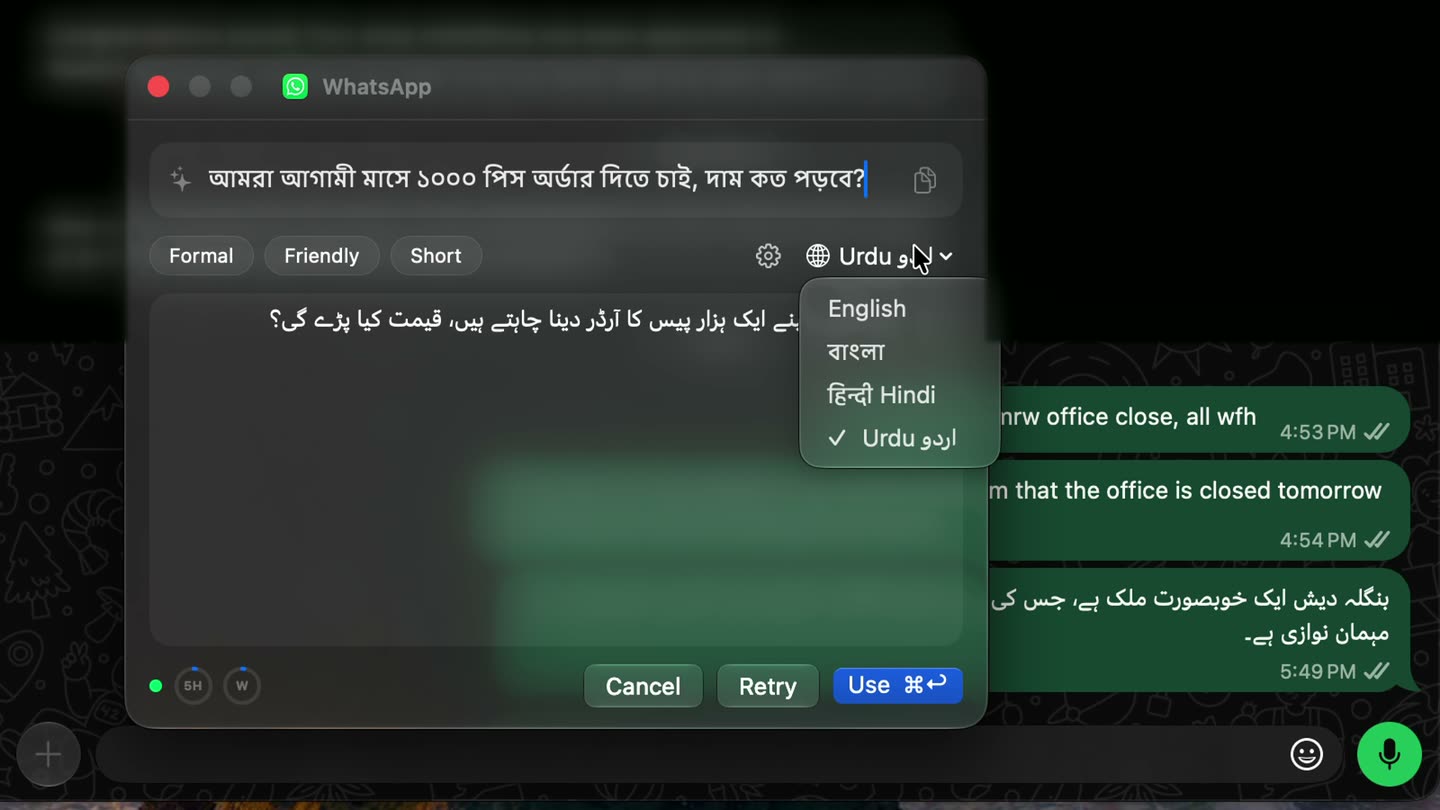
- Language: open the language menu (🌐) in the panel and choose where the message should go out: English, বাংলা, हिन्दी, اردو, العربية, Français, Español, Deutsch, 中文, 日本語 or Bahasa Melayu. Changing it rewrites the same message in the new language.
- Tone: tap Formal for clients and bosses, Friendly for colleagues and friends, or Short when you want it brief.
- Retry writes it again in a different way.
Only the languages you tick in Settings › Output languages show in the menu. English and বাংলা are on at first; add the rest there.
Put it in your chat
Press Use (or ⌘↩ on Mac, Ctrl↵ on Windows). The panel closes and the message is typed into the box you were in. Read it once and press send.
Want it somewhere else? Use the copy buttons in the panel to copy your text or the result.
21Ai pastes by copying first. It puts back whatever you had copied right after, unless you turn that off in Settings.
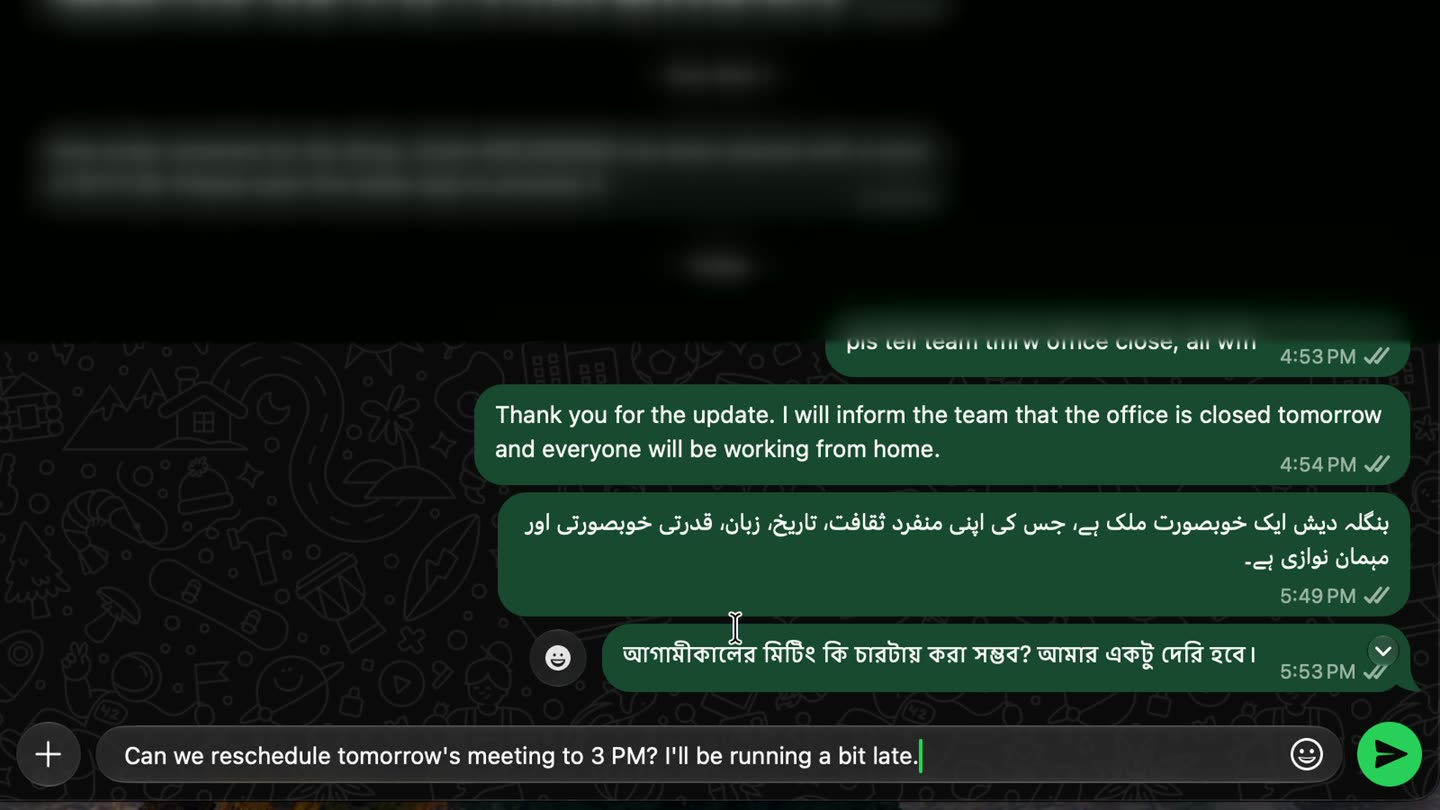
Understand a message and reply
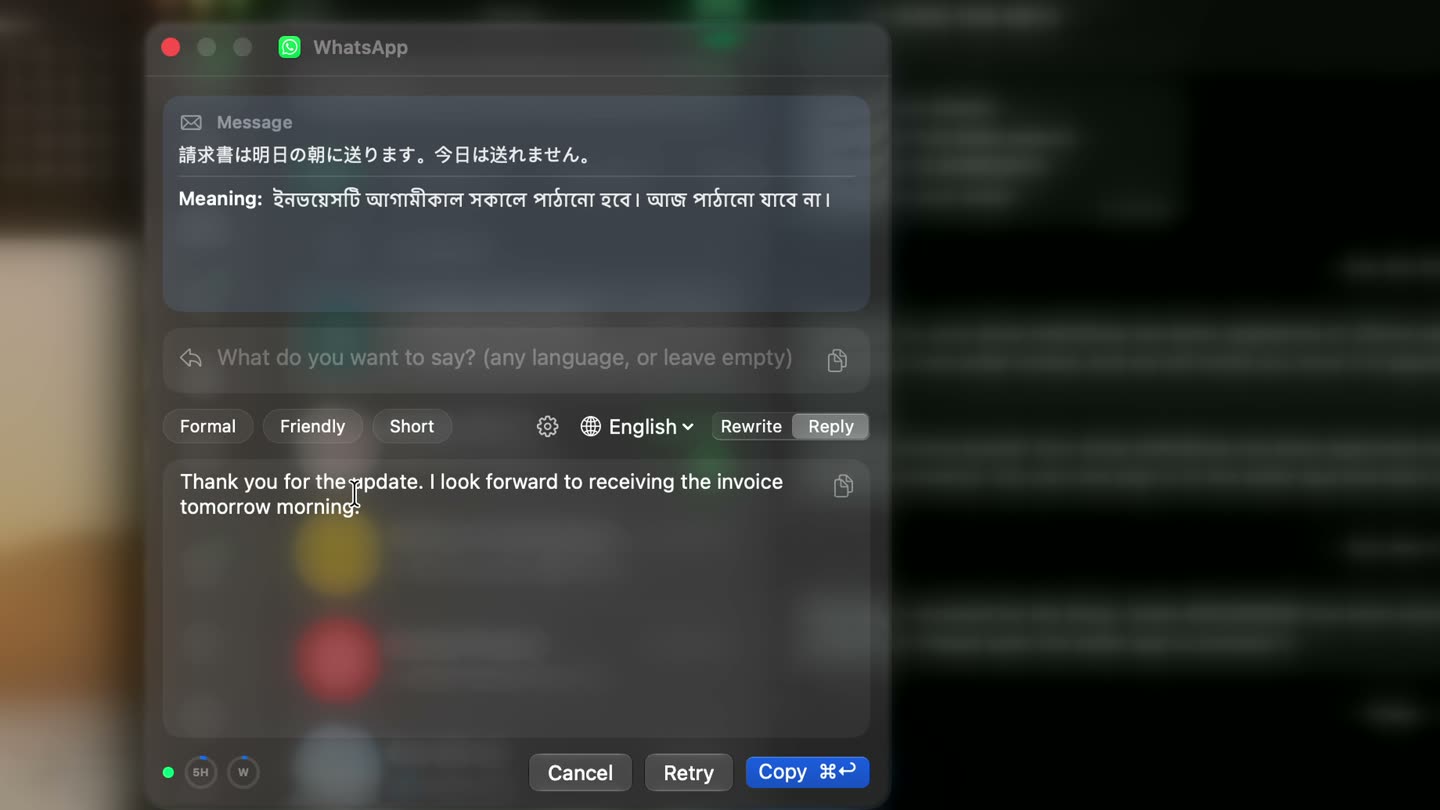
- Select a message someone sent you (double-click or drag over it).
- Tap the shortcut. 21Ai shows what it means in Bangla.
- Type what you want to say back, in any language, or leave it empty. Then press Suggest a reply.
- Press Copy (⌘↩), click in the reply box and paste.
Selected your own text in a box you can type in? 21Ai polishes it instead (Rewrite), and Use replaces it. If it picks the wrong one, switch between Rewrite and Reply in the panel.
Works in every app
21Ai works anywhere you can type: WhatsApp, Messenger, Gmail, Mail, Outlook, Slack, Teams, Telegram, LinkedIn, Google Docs, and the browser. The same shortcut, the same panel.
The panel shows which app you're writing in, so you always know where the text will go.
On Android
Write
- Type in Banglish or any language in the app's own text box, like WhatsApp or Gmail.
- Tap the 21Ai button on top of your keyboard.
- Tap send to see it in your language, then tap ✓ to put it in the box.
Reply
- Select a message you got and choose 21Ai in the menu, or Share it to 21Ai.
- Read the meaning, type what you want to say (or leave it empty) and get a reply.
- Tap Use, or copy it and paste it in the chat.
Pick the output language and tone in the 21Ai app's Settings. You can also write and reply inside the 21Ai app itself.
Settings and limits
Settings
Open them from the gear in the panel or the 21Ai icon in the menu bar or tray. Choose your output languages, the language for meanings (Bangla by default), and whether to restore your clipboard after pasting.
Your limits
The two small rings at the bottom of the panel show your 5-hour and weekly limits. Each starts again from zero when its time is up. Need more? See plans.
Your account
Your plan, usage and payments are on your dashboard. The green dot in the panel means 21Ai is connected and ready.
Troubleshooting
Nothing happens when I tap the shortcut
- Mac: check that 21Ai is on in System Settings › Privacy & Security › Accessibility. If it's already on, turn it off and on again, then quit and reopen 21Ai.
- Windows: check that the 21Ai icon is in the system tray (bottom right, under ^). If not, open 21Ai from the Start menu.
- Tap the key twice quickly, without pressing any other key in between. ⌘+C or Ctrl+C doesn't count.
I don't see the 21Ai button on my Android keyboard
Open the 21Ai app and tap Turn on, then turn on 21Ai under Accessibility › Downloaded apps. If it's greyed out, open App info, tap ⋮ and choose Allow restricted settings, then try again.
The menu bar or tray icon shows a warning
21Ai can't reach the server. Check your internet connection, and make sure you're signed in (click the icon and choose Sign In if it asks).
Use didn't put the text in the box
Click in the box first, then open 21Ai. A few apps block pasting from other apps; in that case press the copy button in the panel and paste it yourself.
The language I want isn't in the menu
Open Settings › Output languages and tick it. It appears in the panel's language menu right away.
It says I've reached my limit
Your 5-hour or weekly limit is used up. Wait until it starts again (the time is shown in Settings and on your dashboard), or upgrade your plan.
Still stuck? Reply to any email from 21Ai and it reaches us. You can also watch the 60-second demo.